Profiles from your ~/.ssh/config
~/.ssh/config with their keys, jump hosts and ports. Pick the ones you want and they stay in sync.Upload files, open tunnels, restart processes and follow your servers’ logs without juggling commands across five Terminal tabs. Uses your ~/.ssh/config and your Mac’s OpenSSH, exactly as you already have them. Free, no account, no telemetry.
Free · no account · macOS 14+ · Apple Silicon and Intel

Who it’s for
Terminalia is a native SSH client for macOS that brings everything you do on your servers into one window: SFTP browser, remote editor, tunnels, PM2 and Docker processes, logs and a terminal, all over a single connection from your Mac’s OpenSSH.
Features
~/.ssh/config with their keys, jump hosts and ports. Pick the ones you want and they stay in sync.Setup
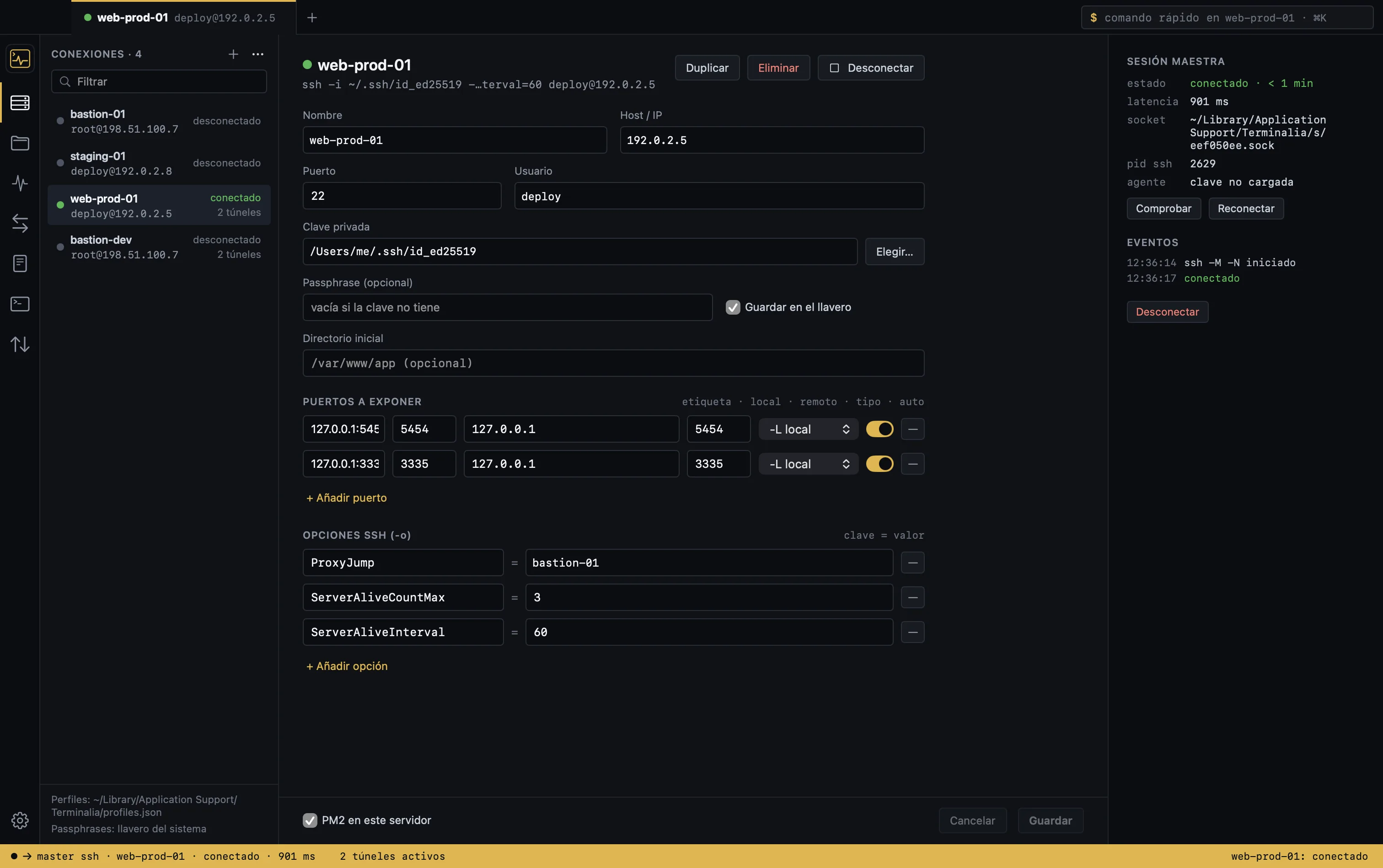
If you already connect from the terminal, Terminalia is already set up. The app reads your ~/.ssh/config, shows you the hosts it finds and lets you choose which to import: with their IdentityFile, port, LocalForward and RemoteForward, and the ProxyJump that gets you in through a bastion.
Because it uses your Mac’s OpenSSH, everything behaves exactly like in Terminal: agents, known_hosts and jump hosts included. Re-import and your profiles update without losing anything you changed by hand. And it never writes to ~/.ssh.

How it works
Terminalia opens a master session with your Mac’s OpenSSH. The file browser, tunnels, commands, logs and terminal all hang off that same socket: you authenticate once and never wait for another handshake. If the network drops, it reconnects on its own and brings your tunnels back up.
It respects your setup: ProxyJump, agents, IdentityFile and known_hosts work just like in the terminal.
Tunnels
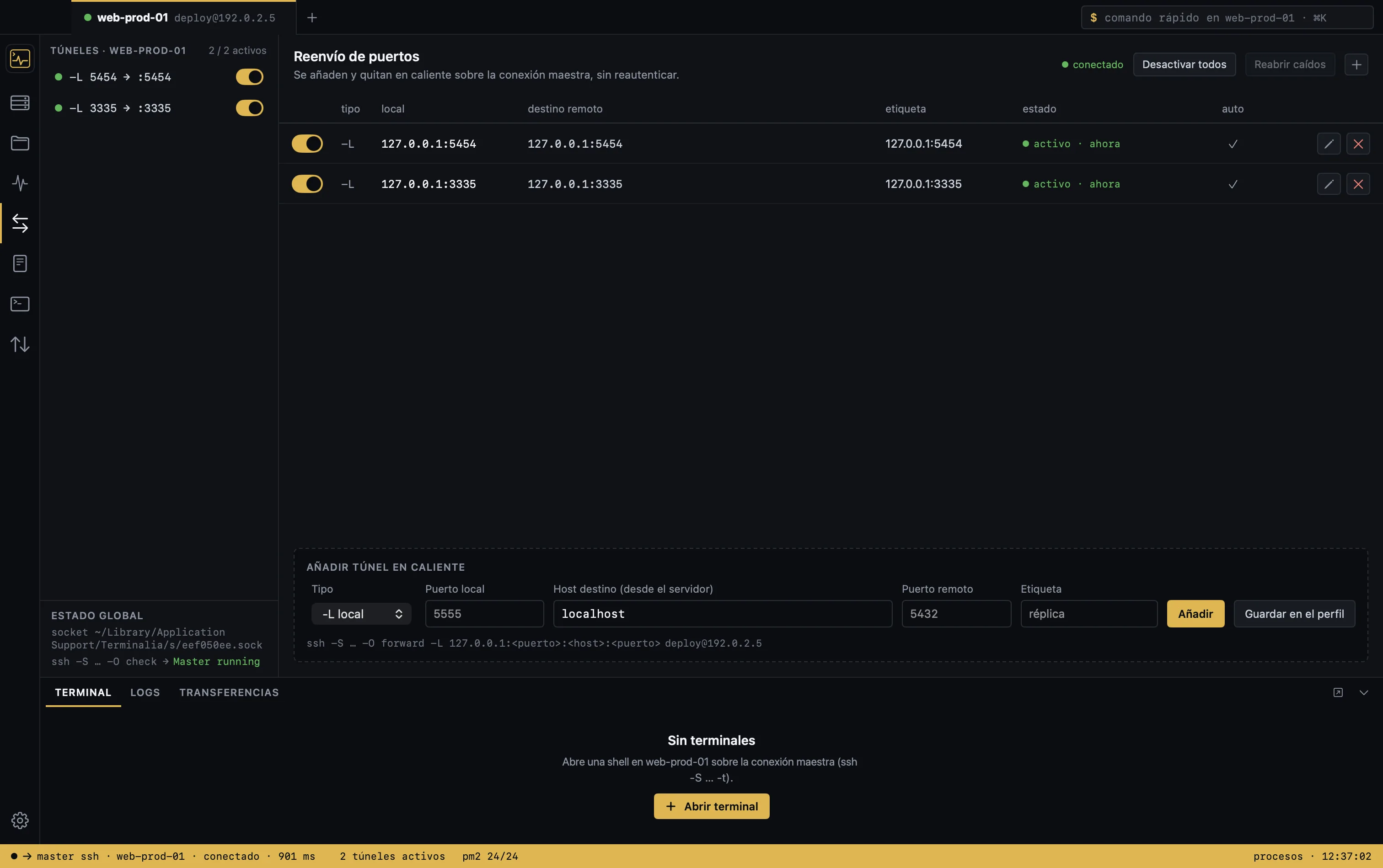
Does your production database only listen on localhost? Need to expose a port on your Mac to the server? Add a local (-L) or remote (-R) forward from a form and switch it on or off live, without dropping the session.
Tunnels ride on the master connection, so you don’t authenticate again. If the local port is already in use, Terminalia tells you which process holds it. And if the network drops, it brings back the tunnels you had open as soon as it reconnects.

Files
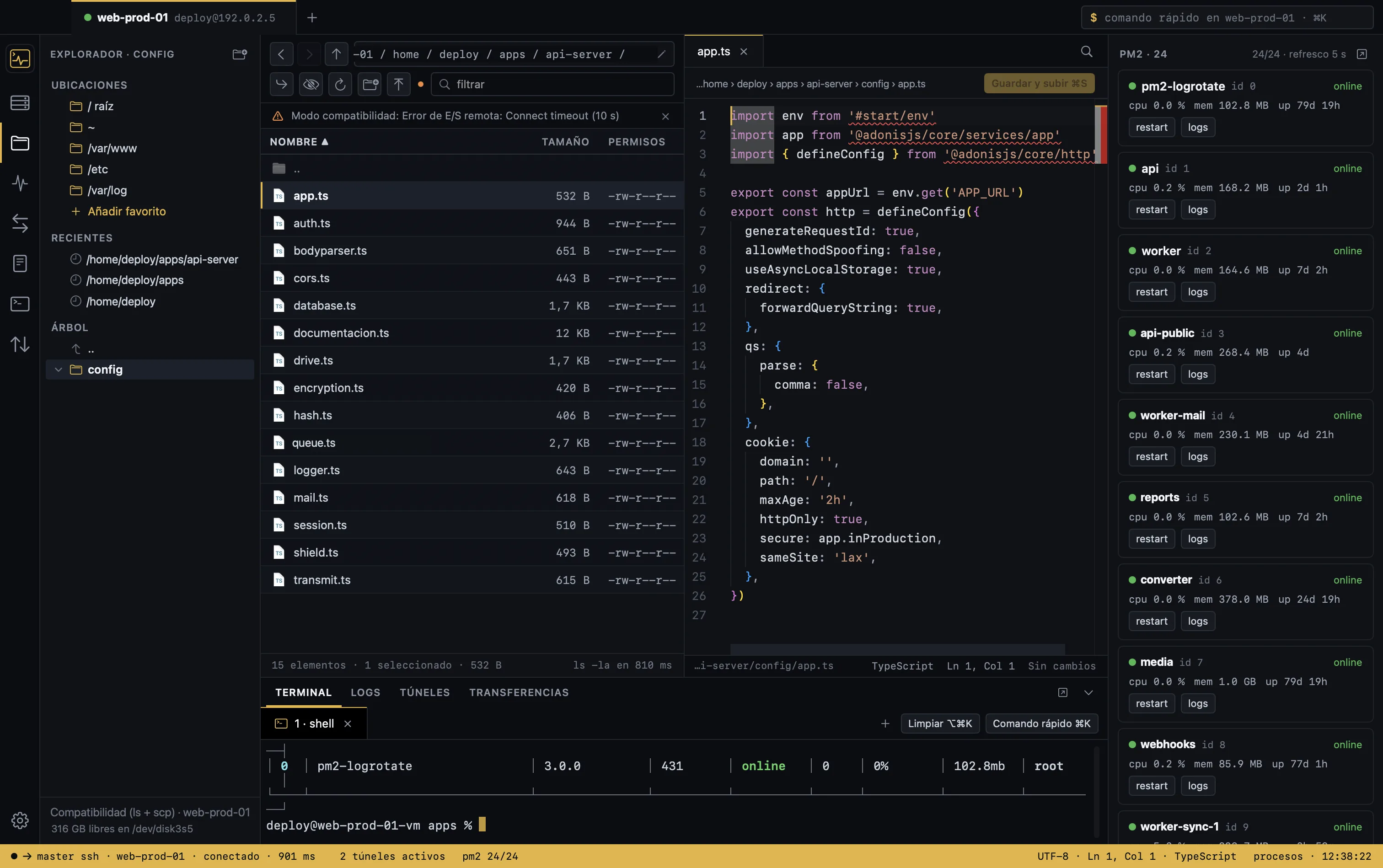
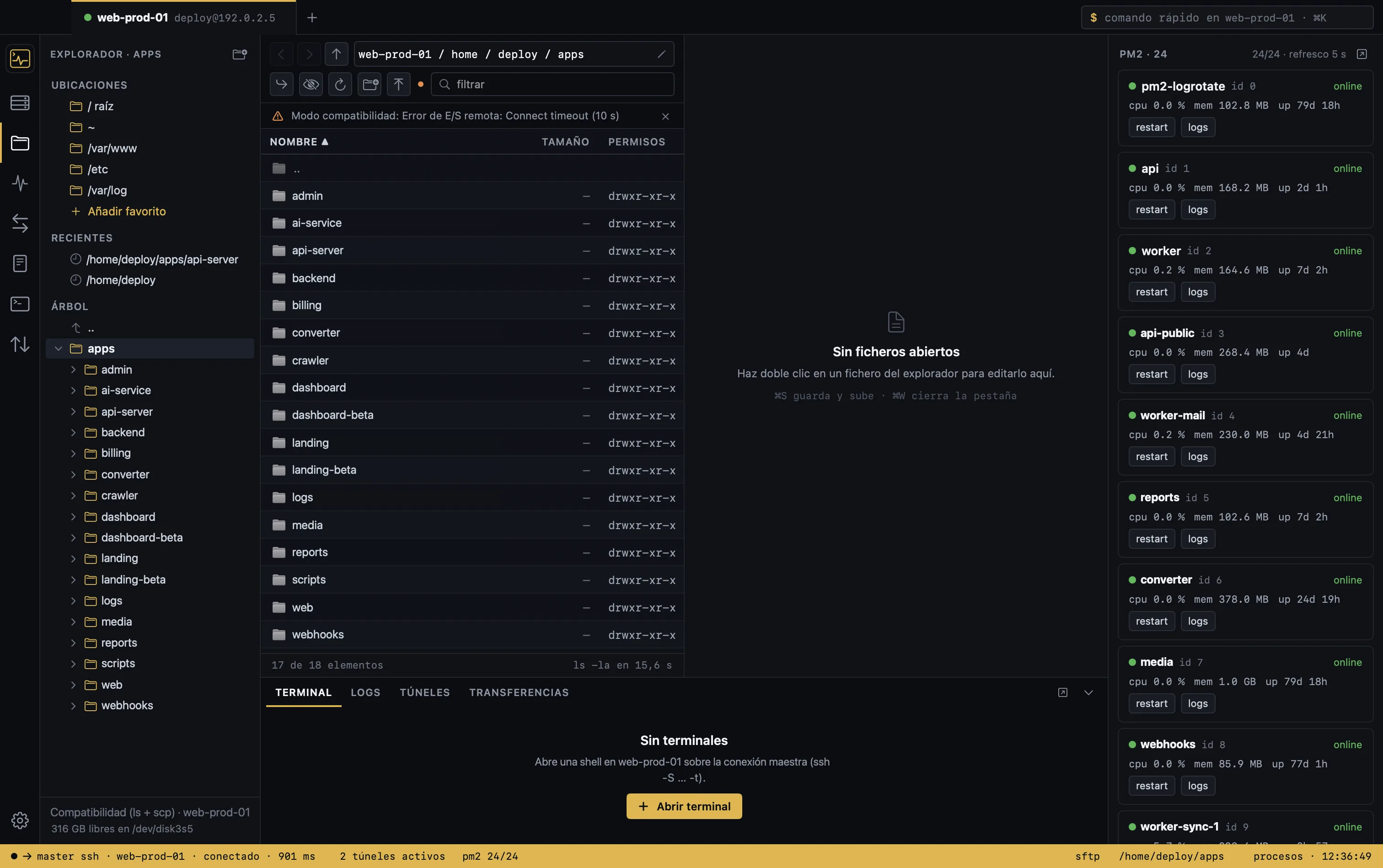
Browse the server as if it were a Finder folder. Drag from the desktop to upload, to the desktop to download, and within the app to move or copy. Change permissions, rename and create folders; the transfer queue shows progress and speed, and large files go over scp.
Double-click a file and it opens in the built-in editor, with tabs and syntax highlighting. ⌘S saves it straight to the server. If someone changed it in the meantime, Terminalia warns you and lets you compare before overwriting.
The editor needs an internet connection the first time it opens.
Processes
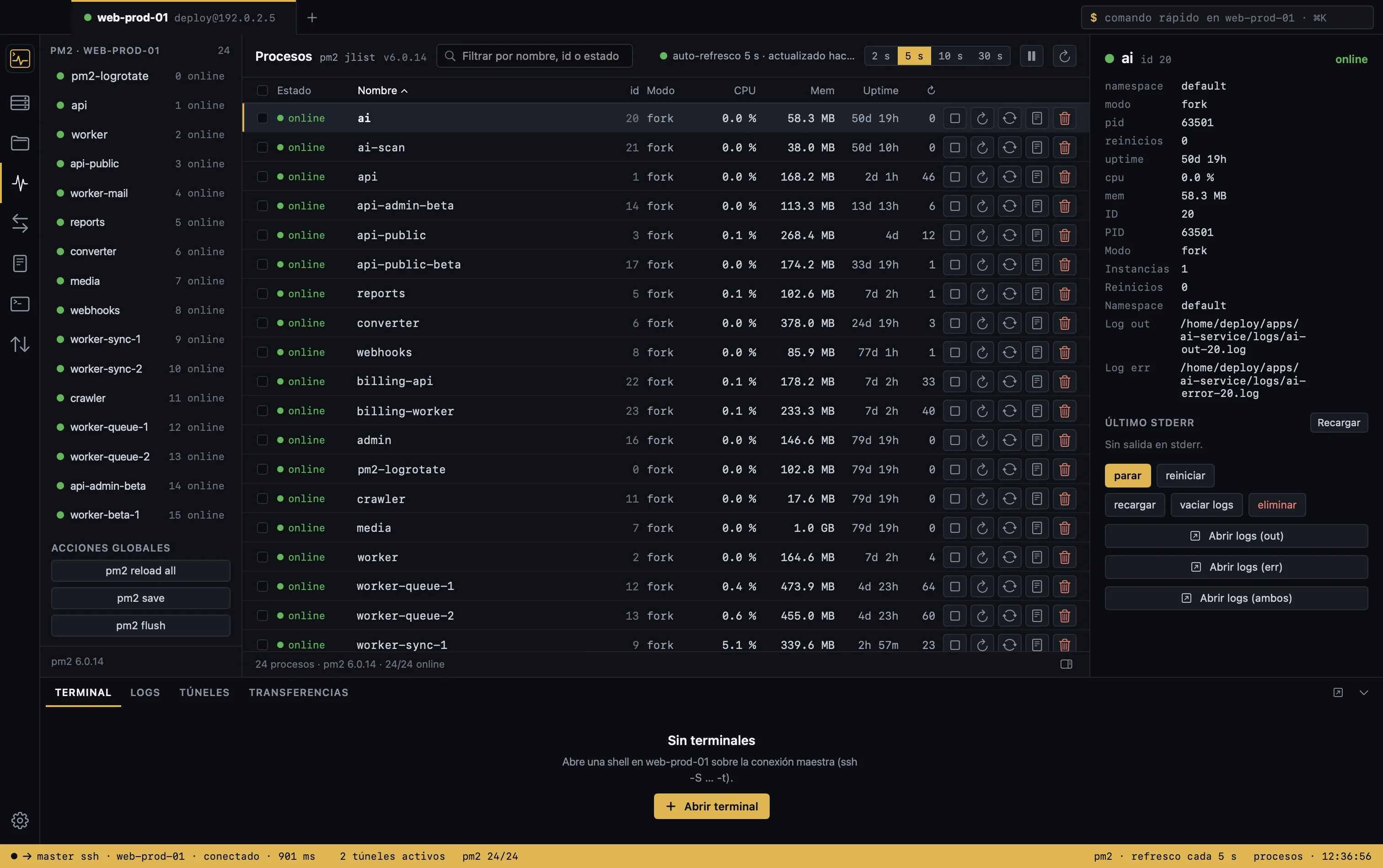
Terminalia detects whether the server runs PM2, Docker or both, and shows them in tabs with live status, CPU and memory. Start, stop, restart and open the logs of any process or container in one click; containers are grouped by Docker Compose project, and you can recreate services or pull new images.
It works even if pm2 was installed with nvm or Homebrew, because commands run in your login shell. Destructive actions ask you to type a confirmation.

Why
It doesn’t replace the terminal: it has one built in. What changes is everything you used to do around it.
| Task | By hand in Terminal | With Terminalia |
|---|---|---|
| Connect to a host behind a bastion | Remember the alias or type -J | Imported from your ~/.ssh/config, one click |
| Open a tunnel to the database | ssh -L 5432:localhost:5432 … in another tab you can’t close | A toggle in the tunnel list, over the same session |
| Edit a config file | Remote vim or scp back and forth | Double-click, edit, and ⌘S saves it on the server |
| Upload a folder | scp -r and wait with no clear progress | Drag from Finder, with a queue and progress |
| Restart a PM2 process | Connect, load nvm, pm2 restart | A button on the process row |
| Follow the logs of three services | Three tabs running tail -f / pm2 logs | Three floating windows with search and filters |
| Recover from a network drop | Reconnect and set up the tunnels again | Automatic reconnect with the tunnels you had |
By handRemember the alias or type -J
With TerminaliaImported from your ~/.ssh/config, one click
By handssh -L 5432:localhost:5432 … in another tab you can’t close
With TerminaliaA toggle in the tunnel list, over the same session
By handRemote vim or scp back and forth
With TerminaliaDouble-click, edit, and ⌘S saves it on the server
By handscp -r and wait with no clear progress
With TerminaliaDrag from Finder, with a queue and progress
By handConnect, load nvm, pm2 restart
With TerminaliaA button on the process row
By handThree tabs running tail -f / pm2 logs
With TerminaliaThree floating windows with search and filters
By handReconnect and set up the tunnels again
With TerminaliaAutomatic reconnect with the tunnels you had
And when you want the good old terminal, it’s one click away: colors, vim and htop, over the same connection.
Coming from Termius? See how they compareYes. Terminalia is a free download from this site: no sign-up, no account and no license to activate. There’s no paid tier and no locked features; the DMG you download is the full app. New versions are published on the Download page and what changed is listed in the Changelog.
No. Terminalia only authenticates with SSH keys and never asks for or stores server passwords. If your server only accepts passwords, create a key on your Mac with ssh-keygen -t ed25519 and copy it to the server with ssh-copy-id user@host. You only do it once, it takes a minute and the connection is more secure.
Terminalia isn’t notarized by Apple yet, so macOS blocks it the first time. Go to System Settings › Privacy & Security and click “Open Anyway”. You only need to do this once. You can verify the DMG against the SHA-256 checksum published on the Download page. The app sends no telemetry and connects through your Mac’s OpenSSH.
Termius is cross-platform and can be used locally without an account, but it needs one to sync your hosts across devices and for its paid plans; Royal TSX handles many protocols (RDP, VNC, SSH) under a paid license. Terminalia is Mac only and SSH only: it uses the system OpenSSH and your ~/.ssh/config, and adds SFTP, tunnels, PM2, Docker and logs over one connection. Free, no account.
No. Terminalia is a native macOS app and runs only on macOS 14 or later, on both Apple Silicon and Intel. There’s no version for Windows, Linux, iPad or iPhone, nor for macOS 13 or earlier, because it relies on SwiftUI features those systems don’t have.
No. Terminalia is free, but its source code isn’t public. What you can check is what it does on your Mac: it uses the system OpenSSH, stores profiles in your Application Support folder and the passphrase in the Keychain, and sends no analytics or crash reports. The details are on the Privacy page.
It only stores your private key’s passphrase, if the key has one and you enter it, and it keeps it in the macOS Keychain, not in a file. It never stores server or admin passwords because it doesn’t use them: authentication always happens with an SSH key through your Mac’s OpenSSH.
No. Every command runs with the permissions of the profile’s SSH user, and the app never runs sudo on your behalf or asks for an admin password. If a task needs privileges, like adding your user to the docker group, you do it yourself from the built-in terminal, which runs over the same connection.
Yes. Terminalia reads your ~/.ssh/config, shows you the hosts it finds and lets you choose which to import, with their key, port, LocalForward and RemoteForward rules and ProxyJump. Re-importing updates your profiles without overwriting what you changed by hand. It never modifies your ~/.ssh/config or your keys.
Yes. Terminalia uses your Mac’s OpenSSH, so ProxyJump, bastions, SSH agents, IdentityFile and known_hosts behave exactly as they do in Terminal. If an alias connects from your terminal, it connects from the app too. When you import from ~/.ssh/config, the jump host is kept in the profile so you don’t have to type it again.
Download the DMG, import your ~/.ssh/config and you’re in within a minute. All you need is macOS 14 or later and an SSH key.
Download free for MacFree · no account · macOS 14+ · Apple Silicon and Intel